If you use a Pearson MyLabs & Mastering product in your course, you may be able to integrate your MyLabs course with your BOLT course. This integration allows students to sign into and register for your Pearson class right inside BOLT. It also gives you the ability to sync grades from MyLabs into your BOLT Gradebook.
If you want to add Pearson MyLabs to your 2016Fall BOLT course, please request it by August 12th here: http://goo.gl/forms/tG38b35eS3
If you want to know more about this integration, search for “Pearson” in the BOLT Help Course.

A blog dedicated to BOLT information and updates for Bloomsburg University faculty.
Monday, July 25, 2016

Coming Soon to BOLT: Examity

Instructors
who would like to use a live proctoring service for high-stakes assessments
in online courses will be able to use Examity beginning in 2016 Fall.
Examity will be integrated with BOLT and will be available at NO COST to
students. We will provide greater detail at a later date, but for now are here
some important items to note:
- Only for use with high-stakes assessments (mid-terms/final exams) in online courses
- Students will need to schedule the proctoring service at least 24 hours prior to their scheduled exam
- Students will need to have a web cam in order to use the service
- NO COST to students to use the service
- Integrated with BOLT
Coming Soon to BOLT: Audio Note 2.0 and Video Note
Desire2Learn has improved the Audio tool and removed its dependency on Flash. Instructors will now be able to add audio without using Flash or encountering any dialogs requiring them to allow Flash to access their microphone. The new improved audio tool will be available in BOLT in time for the 2016 Fall semester.
Also, a new tool, Video Note, will be available for 2016 Fall. Video Note, also not dependent on Flash, allows instructors to record short video clips and attach them to items in their courses, or as feedback for student submissions. Instructors will be able to easily record short video clips and insert them into course items in BOLT.
Also, a new tool, Video Note, will be available for 2016 Fall. Video Note, also not dependent on Flash, allows instructors to record short video clips and attach them to items in their courses, or as feedback for student submissions. Instructors will be able to easily record short video clips and insert them into course items in BOLT.
Update Your Respondus or StudyMate License after July 31st!
Our Respondus and StudyMate license is changing on August 1st.
This means the password will be reset and you will need to update it in your Respondus and/or StudyMate software.
For the new license info and passwords, please search the BOLT Help Course for “Respondus” and “StudyMate”.
This means the password will be reset and you will need to update it in your Respondus and/or StudyMate software.
For the new license info and passwords, please search the BOLT Help Course for “Respondus” and “StudyMate”.
Updates to Discussions
New features have been added to the Discussions tool in BOLT. Copy replies when copying threads and copy the forum description into its topics.
Updates to Class Progress
New features have been added to the Class Progress tool in BOLT. See when students accessed the course or downloaded content.
You are now able to see when students have accessed your course.
To see this, go to Course Resources, select Class Progress, and click on a student. On the left side of the page, click on Course Access. This will load a page displaying when the student logged into your course.
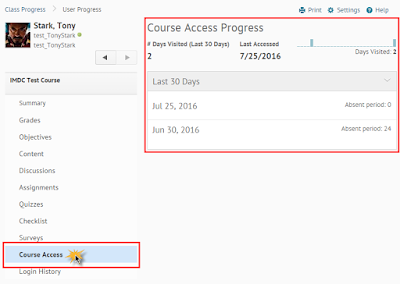
You are also able to see when students have downloaded content topics.
To see this in Class Progress, click on Content on the left side of the page. This will load a page displaying the student’s progress in the Content tool of the course.
Modules that have been downloaded will be tagged as "Downloaded".
Expand modules to see student progress in their content topics by clicking on the “# Topics, # Modules” link.

Once you can see all the topics, any topics students have downloaded will be tagged as “Downloaded”. (Note that the tool may still say the student “Never visited” the content topic, even if the student has downloaded it for offline viewing.)

You are now able to see when students have accessed your course.
To see this, go to Course Resources, select Class Progress, and click on a student. On the left side of the page, click on Course Access. This will load a page displaying when the student logged into your course.

You are also able to see when students have downloaded content topics.
To see this in Class Progress, click on Content on the left side of the page. This will load a page displaying the student’s progress in the Content tool of the course.
Modules that have been downloaded will be tagged as "Downloaded".
Expand modules to see student progress in their content topics by clicking on the “# Topics, # Modules” link.

Once you can see all the topics, any topics students have downloaded will be tagged as “Downloaded”. (Note that the tool may still say the student “Never visited” the content topic, even if the student has downloaded it for offline viewing.)

Tuesday, July 5, 2016
BOLT Unvailable Sunday, July 10 from 1am to 7am
Every month, BOLT undergoes a maintenance window. This month’s
maintenance window is on Sunday, July 10, 2016 from 1:00am to 7:00am ET. BOLT
will be unavailable during this time. Please plan accordingly.
Maintenance Window FAQ
Q: Where are the maintenance dates announced?
A: Maintenance dates are announced here on our BOLT Students
blog, our BOLT Blog for faculty, and in the News items on your My Home page in
BOLT.
Q: What will happen if I try to log in during a maintenance period?
A: A page will load that says Desire2Learn is unavailable due
to scheduled maintenance.
Q: Why am I still seeing a page that tells me D2L is unavailable after the maintenance window?
A: If you tried to login to BOLT during the maintenance
window, your browser may be loading the scheduled maintenance page from its cache
memory. If you encounter this page outside of the maintenance window, please
clear your browser cache before trying to login to BOLT again.
Q: This is a bad time for BOLT to be unavailable. Can maintenance be rescheduled?
A: We understand frustration when BOLT downtime occurs during
busy times of the academic year. Unfortunately, we cannot reschedule the
maintenance windows. The IMDC has no control over the regularly scheduled maintenance windows. They are scheduled by our vendor and are necessary to keep
BOLT working optimally.
Subscribe to:
Posts (Atom)