Showing posts with label course. Show all posts

Thursday, November 14, 2019

2020 Spring Courses Now in BOLT

Information regarding 2020 Spring Courses:

  • Students will load into Spring courses on January 10th.
    • You must set your course to "active" for students to have access to it in BOLT.
  • Want Spring course sections combined in BOLT? The deadline was November 13th but if you have a late contract or assignment, you can contact us prior to the start of the semester with a special request for course combine at imdc@bloomu.edu.

Locating 2020 Spring course(s) in BOLT:

cursor on select a course grid icon and over the pin icon to the right of a 2020Spring

  1. Click the Select a course (grid) icon at the top of the page in BOLT.
  2. 2020Spring course(s) will display in the list.
    • If you have a search field, type "2020Spring" and click the magnifying glass icon to Search for only those courses.
    • You can pin your courses to pin them to the top of your list for easy access during the session.
Via My Courses Widget
cursor over 2020Spring semester filter in My Courses widget and Spring courses displayed with inactive filter over the course image


  1. Click the semester filter for "2020Spring" or else click the arrow to expand the filter menu and click "2020Spring"
  2. Courses will display for that semester/session with an Inactive filter over the course image.

Support Information:

IMDC Learning Lounge

  • Andruss Library 206
  • Monday - Friday | 9am to 4pm
  • Email us at imdc@bloomu.edu
  • Call us at (570)389-2065

24/7 BOLT Technical Support

  • Call 1-866-921-0473
  • Use the BOLT Support widget in BOLT to create a support ticket or access the knowledge base for support articles.

Thursday, June 6, 2019

2019 Fall Courses Now in BOLT

Information regarding 2019 Fall Courses:

  • Students will load into Fall courses on August 15th.
    • You must set your course to "active" for students to have access to it in BOLT.
  • Want Fall course sections combined in BOLT? The deadline was June 4th but if you have a late contract or assignment, you can contact us prior to the start of the semester with a special request for course combine at imdc@bloomu.edu.

Locating 2019 Fall course(s) in BOLT:

cursor on select a course grid icon and over the pin icon to the right of a 2019Fall course
  1. Click the Select a course (grid) icon at the top of the page in BOLT.
  2. 2019Fall course(s) will display in the list.
    • If you have a search field, type "2019Fall" and click the magnifying glass icon to Search for only those courses.
    • You can pin your courses to pin them to the top of your list for easy access during the session.
Via My Courses Widget
cursor over 2019Fall semester filter in My Courses widget and Summer courses displayed with inactive filter over the course image
  1. Click the semester filter for "2019Fall" or else click the arrow to expand the filter menu and click "2019Fall"
  2. Courses will display for that semester/session with an Inactive filter over the course image.

Support Information:

IMDC Learning Lounge

  • Andruss Library 206
  • Monday - Friday | 9am to 4pm
  • Email us at imdc@bloomu.edu
  • Call us at (570)389-2065

24/7 BOLT Technical Support

  • Call 1-866-921-0473
  • Use the Support Portal widget in BOLT to access live chat, email, and knowledge base technical support.

PSST! Come to our Web Conferencing Wednesdays Sessions!

We told you we would have more information about upcoming training sessions! The first bunch we want you to know about are all about our web conferencing tool Zoom. On select Wednesdays we are offering “Introduction to Zoom” trainings. In August as our training schedule picks up prior to Fall, we will also offer “Engaging Students in Zoom”.

If you are new to Zoom and want to learn how to use it to conduct online meetings or classes, please consider registering for “Introduction to Zoom” on one of our Web Conferencing Wednesdays.

If you are looking to increase engagement or do more activities in your Zoom meetings, please consider attending “Engaging Students in Zoom” in August.

Trainings will take place in Andruss Library 243!

Registration for sessions is required and is available at https://forms.gle/KQReopJmV4JCysGq5

We look forward to seeing you soon!

Friday, May 10, 2019

Students Now Enrolled in BOLT Courses for 19 Summer

Students are now visible in the Classlist of 2019Summer courses in BOLT.

REMINDER: You must set your course to active in order for students to see and access it in BOLT.

Locating 2019 Summer course(s) in BOLT:


  1. Click the Select a course (grid) icon at the top of the page in BOLT.
  2. 2019Summer course(s) will display in the list. 
click the Select a course grid icon to see courses displayed in the list or search for 2019Summer to see courses" title="click the Select a course grid icon to see courses displayed in the list or sea" title="click the Select a course grid icon to see courses displayed in the list or search for 2019Summer to see courses

  • If you have a search field, type "2019Summer" and click the magnifying glass icon to Search for only those courses.
  • When the Summer session begins, we recommend pinning the course(s) to your My Courses widget for easy access to the course(s).
Courses are inactive by default! You will see the word “Inactive” tagged to your course(s) in the My Courses widget. STUDENTS CANNOT SEE OR ACCESS INACTIVE COURSES.
When you want students to be able to see and access the course, set it to active:
  • Click on a course name in BOLT to enter the course.
  • Click Course Admin.
  • Click on "Course Offering Information" in Course Admin.
  • Scroll down and check the box in front of "Course is active".
  • Click the "Save" button.
No course(s) found? Please verify you are listed in MyHusky as the instructor for the course(s) before contacting us. It takes 24-48 hours once you are listed as the instructor in MyHusky for you to gain access to the course in BOLT.

Support Information:

Instructional Media and Design Center

Learning Lounge - Andruss Library 206
Summer Hours: M/W/F 12pm - 4pm
Email us at imdc@bloomu.edu
Call us at (570)389-2065

24/7 BOLT Technical Support

Call 1-866-921-0473
Use the Support Portal widget in BOLT to access live chat, email, and knowledge base support.
Access the searchable IMDC Infobase at http://bloomuimdc.freshdesk.com
In BOLT, click Help, then BOLT Help Course to access other step by step docs and video tutorials.

Wednesday, November 1, 2017

2018 Spring Courses Now Available to Instructors in BOLT

Information regarding 2018 Spring Courses:

  • Students will load into Spring courses on January 11th.
    • You must set your course to "active" for students to have access to it in BOLT.
  • Do you use the Pearson integration in your BOLT course?

Locating 2018 Spring course(s) in BOLT:

screenshot clicking on the Select a Course grid icon with the text 2018Spring entered in the search field and indicating clicking the pin icon to pin courses to My Courses widget" title="screenshot clicking on the Select a Course grid icon with the text 2018Spring entered in the search field and indicating clicking the pin icon to pin courses to My Courses widget


  1. Click the Select a course (grid) icon at the top of the page in BOLT.
  2. 2018Spring course(s) will display in the list.
    • If you have a search field, type "2018Spring" and click the magnifying glass icon to Search for only those courses.
    • When the Spring semester begins, we recommend pinning the course(s) to your My Courses widget for easy access to the course(s).

Support Information:

The Instructional Media and Design Center

  • Open to faculty in Andruss Library 206.
  • Monday through Friday, 8:00AM to 4:30PM
  • Call us at (570)389-2065
  • Email us at imdc@bloomu.edu

24/7 BOLT Technical Support

  • Call 1-866-921-0473
  • Use the Need Help? widget in BOLT to access live chat, email, and knowledge base support.

Thursday, August 10, 2017

Pearson MyLabs & Mastering Fall Deadline

Do you use Pearson MyLabs & Mastering in your course?


If you use Pearson MyLabs & Mastering in your course and want it added to your 2017 Fall courses, please go to https://goo.gl/forms/BpuILeiwMVHdtDZT2 and request Pearson for your course. The deadline for Fall requests is August 16, 2017.


The BOLT integration allows grade sync from Pearson to BOLT. Students must click through the Pearson widget in your BOLT course to sync up their account with BOLT. For more information, search for "Pearson" in the BOLT Help Course.


To get to the BOLT Help Course, login to BOLT and click Help. Click BOLT Help Course. To search, click Content. Enter "Pearson" in the search field at the left of the page.

Wednesday, December 21, 2016

BOLT Tips: Course Copy

We thought it might be helpful to give you a few pointers for when you are copying your courses for 17Spring.
Make sure you are in the new, empty course when you start a course copy.
Copying the same items from the same source multiple times results in duplicates.
If you are copying Content and want topics to display, make sure you are also copying Course Files. If you don’t copy Course Files, the content structure will copy over... but not the content of the topics.
If you are copying linked or associated components (such as grade items), copy the related components at the same time.
After a successful course copy, make sure to update date restrictions.
After a successful course copy, make sure to check your group related items and restrictions to ensure groups are set up the way you want.

Monday, July 25, 2016

Coming Soon to BOLT: Examity

Instructors who would like to use a live proctoring service for high-stakes assessments in online courses will be able to use Examity beginning in 2016 Fall. Examity will be integrated with BOLT and will be available at NO COST to students. We will provide greater detail at a later date, but for now are here some important items to note:
 
  • Only for use with high-stakes assessments (mid-terms/final exams) in online courses
  • Students will need to schedule the proctoring service at least 24 hours prior to their scheduled exam
  • Students will need to have a web cam in order to use the service
  • NO COST to students to use the service
  • Integrated with BOLT
 
We will provide more detailed information prior to the fall semester. We will be offering trainings as well as providing necessary documentation/directions for both instructors and students. Please keep an eye out for more information prior to the start of the fall semester.

Updates to Class Progress

New features have been added to the Class Progress tool in BOLT. See when students accessed the course or downloaded content.


You are now able to see when students have accessed your course.


To see this, go to Course Resources, select Class Progress, and click on a student. On the left side of the page, click on Course Access. This will load a page displaying when the student logged into your course.


screenshot of Class Progress tool with Course Access selected


You are also able to see when students have downloaded content topics.


To see this in Class Progress, click on Content on the left side of the page. This will load a page displaying the student’s progress in the Content tool of the course.


Modules that have been downloaded will be tagged as "Downloaded".


Expand modules to see student progress in their content topics by clicking on the “# Topics, # Modules” link.


screenshot of Class Progress tool with Content selected and clicking to expand view to include module topics


Once you can see all the topics, any topics students have downloaded will be tagged as “Downloaded”. (Note that the tool may still say the student “Never visited” the content topic, even if the student has downloaded it for offline viewing.)


screenshot of Class Progress with module view expanded to view topics and topic tagged as Downloaded

Thursday, June 16, 2016

Did you know...

...you can use the Course Copy tool in BOLT to save development time?

screenshot of the Copy Course Content widget on the course home page


If you’ve taught your course before, or if you’re teaching a course based on a specified curriculum, you can use the Course Copy tool to save development time. Course Copy will copy your old course into your new one.


You can find the Course Copy tool in the Copy Course Content widget on the right side of the course home page of your new course.

Course Announcements in Courses Only

Starting June 17th, course announcements will no longer be visible on the My Home page.


Course announcements will still be visible in the Announcements widget on the course home page.


Notifications settings will remain the same. If students have opted to receive announcements notifications, they will still receive them as usual.

Wednesday, May 18, 2016

Did you know you can combine course sections into one course in BOLT?

Save Time and Energy with a Course Combine!

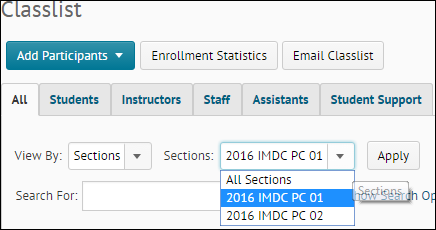
screenshot of filtering the classlist in a BOLT course by section
If you're teaching multiple sections of the same course in a semester, you can combine them into one course offering in BOLT! This saves time since you only have one course in BOLT to deal with!


For Example:
  • Instead of creating the same quiz again and again for each section, create the quiz once.
  • Upload one set of course materials one time.
  • Send email to all students at once or students in certain sections from the Classlist.
  • Assess and evaluate all students in one place.
For more information on combining courses, search for "combine" in the BOLT Help Course! Contact us at bolthelp@bloomu.edu if you have questions!

The request deadline for 2016Fall courses is June 1st!

Pearson MyLabs & Mastering for BOLT 2016Fall

Do you use Pearson MyLabs & Mastering products in your course?


Are students completing graded work in the MyLabs system? Would you like to be able to sync those grades over to BOLT easily?


We now have an integration in BOLT to easily sync grades from Pearson MyLabs & Mastering to BOLT Gradebook.


screenshot of the Pearson MyLabs grade sync page


If you want to add the integration to your 2016Fall BOLT course, please request it with our web form here: http://goo.gl/forms/tG38b35eS3


If you want to know more about this integration, search for "Pearson" in the BOLT Help Course.

Thursday, April 21, 2016

2016Fall Course Combine Deadline

If you would like to combine courses for the 2016 Fall semester, please complete the BOLT Combine Course Request Form via the Faculty Center in MyHusky (PeopleSoft). Once you access the Faculty Center, you will find a tab titled 'BOLT Combined Request'.

For directions on how to do this, you can watch the Course Combine Request Video Tutorial or view the Course Combine Request Documentation PDF.


Deadline: June 1st, 2016


NOTE: Requests must still be completed by the given deadline. Requests after the deadline will only be accepted if there is a schedule change or new instructor hire.


Lecture/Lab Sections Reminder: If you teach a lecture course with multiple labs but do not have access to all lab sections, submit a request to Chaya Merrell by email. For more information, please see the Semester Start Information module in the BOLT Help Course.


What is a combined course?
A combined course combines several sections into one course offering in BOLT.


What are the benefits of combining my course sections?
If you are teaching several sections of the same course, you may want to combine the sections into one larger course offering in BOLT. BOLT allows instructors to filter views and tools by section and release content to specific sections, so you can manage all your sections in one course offering rather than maintaining three or four different courses in BOLT. This can save you time and make managing your sections easier.


If I don’t combine my courses can I request to combine them later?
No. We only combine courses instructors have requested combined by the deadline. The only late requests we accommodate are late assignments or contracts and schedule changes. We do not combine active courses after the semester starts unless there are special circumstances.


If I combine my course sections, can I split them later?
No. We do not separate combined courses once the semester begins unless there is an assignment change from the department or other special circumstances.

2016Summer Courses

Teaching this summer?


2016Summer courses are available in BOLT.


Students will load into classes on or around May 5th.


Remember, students will not see courses in BOLT until professors activate them!


For help with starting the semester in BOLT, check out our Semester Start Information and other modules in the BOLT Help course in BOLT.


If you need assistance setting up anything in your BOLT courses, contact BOLT Support.


Thursday, March 31, 2016

2016 Fall BOLT Combined Request Available in MyHusky

If you would like to combine courses for the 2016 Fall semester, please complete the BOLT Combine Course Request Form via the Faculty Center in MyHusky (PeopleSoft). Once you access the Faculty Center, you will find a tab titled 'BOLT Combined Request'.

For directions on how to do this, you can watch the Course Combine Request Video Tutorial or view the Course Combine Request Documentation PDF.

Deadline: June 1st, 2016
NOTE: Requests must still be completed by the given deadline. Requests after the deadline will only be accepted if there is a schedule change or new instructor hire.

Lecture/Lab Sections Reminder: If you teach a lecture course with multiple labs but do not have access to all lab sections, submit a request to Chaya Merrell by email. For more information, please see the Semester Start Information module in the BOLT Help Course.

Wednesday, November 18, 2015

Build Your 2016Spring Course Workshop

Would you like hands on help building your 2016Spring courses?

Join us for the Build Your 2016Spring Course Workshop!


The IMDC will be holding a hands on workshop to help you build your 2016Spring courses.

We will help you copy course components, set up groups, group assignments, and group discussions create quizzes... whatever you want to build, we will help you build it so you are ready to start off the Spring semester in style.

When: Wednesday, December 16, 2015 at 2pm
Where: Andruss Library 243
How: YOU MUST REGISTER TO ATTEND. Please register at http://tinyurl.com/IMDC16Spring

Bring any new content and/or course materials to the workshop in a digital format, either on a flash drive or on your P drive.

If you have any questions please contact Julie Wolfe at jwolfe2@bloomu.edu.

Thursday, October 15, 2015

Build Your 2016Spring Course Workshop

The IMDC will be holding a hands on workshop to help you build your 2016Spring courses.

We will help you copy course components, get groups, group assignments, and group discussions set up, create quizzes... whatever you want to build, we will help you build it so you are ready to start off the Spring semester in style.

When: Wednesday, December 16, 2015 at 2pm
Where: Andruss Library 243
How: YOU MUST REGISTER TO ATTEND. Please register at http://tinyurl.com/IMDC16Spring

Bring any new content and/or course materials to the workshop in a digital format, either on a flash drive or on your P drive.

If you have any questions please contact Julie Wolfe at jwolfe2@bloomu.edu.

2015Winter and 2016Spring Courses

2015Winter courses are now in available in BOLT. Students will be added to courses December 1st.

2016Spring courses will be available in BOLT November 19. Students will be added to courses January 5th.

Remember: Students will not see courses until professors activate them! You may want to let your students know if you plan to use BOLT or not before classes begin.

Copy Course Components - Improved copy content settings

The Content Display Settings copy the settings controlled by org unit configuration, including Content Arrangement and Navigation display options, and completion status tracking. You can access these settings from the Content > Settings popup window. Previously, if you selected Content display settings from the Copy Selected Components workflow, these items were not properly copied. The update on October 16, 2015 ensures that the Content Settings are all copied as expected when you use the Copy Course Components and Bulk Course Copy options.


The middle part of this dialog (Content Authoring) contains settings that are not included in a course copy.


Thursday, September 17, 2015

Changes to Copy Selected Components workflow

Beginning September 18, 2015, Copy Selected Components is moving to an asynchronous job to avoid copy timeouts when copying large courses.

a screenshot of Import/Export/Copy Components with the ability to select View History under Copy Components
Copy Course Components on the Import/Export/Copy Components page


You are able to start the copy process and check the progress on the History page, which enables you to perform other tasks while the copy process is underway.

a screneshot of viewing the history of copy course components
Copy Course Components - View History