Showing posts with label BOLT tips. Show all posts

Friday, March 23, 2018

Update: Due dates now available in the Manage Dates tool

If you haven't used the Manage Dates tool before, now you have more reason to try it out: the tool now allows you to alter the due dates on all the items in your course.


To access Manage Dates, click Course Admin, then Manage Dates.


You can use the tool to modify dates for items in your course. You can do this one by one or select multiple items and use the bulk edit feature to modify many at once. (TIP: This is an excellent tool to save you time after a course copy, or if your course gets off schedule and you need to offset dates!)


assignment items in the Manage Dates tool with the Due Dates column highlighted
Items in Manage Dates with the Due Date column highlighted.

Friday, January 12, 2018

Do you have BOLT Questions?

If you have questions about BOLT or about the new Video Assignments tool, please join online sessions to get the answers you need.


BOLT Open House Sessions
Wednesday, January 17 @ 10am
Thursday, January 18 @ 2:30pm


Video Assignments Sessions
Wednesday, January 17 @ 3pm
Friday, January 19 @ 9am


Click the Zoom link below on the date/time of the session you want to attend to join the webinar!


Wednesday, December 21, 2016

BOLT Tips: Course Copy

We thought it might be helpful to give you a few pointers for when you are copying your courses for 17Spring.
Make sure you are in the new, empty course when you start a course copy.
Copying the same items from the same source multiple times results in duplicates.
If you are copying Content and want topics to display, make sure you are also copying Course Files. If you don’t copy Course Files, the content structure will copy over... but not the content of the topics.
If you are copying linked or associated components (such as grade items), copy the related components at the same time.
After a successful course copy, make sure to update date restrictions.
After a successful course copy, make sure to check your group related items and restrictions to ensure groups are set up the way you want.

Thursday, November 17, 2016

New in BOLT: Include Group & Section in Gradebook Export


You can now include group and section membership for each student in gradebook exports.

When exporting grades from the gradebook, under User Details there is a new option to include group and section membership information for each user. This allows for more detailed analysis of grades outside of BOLT.

To include group or section membership in grade exports,

1. Click Coursework.

2. Select Grades.

3. Click Enter Grades.

4. Click the Export button.

5. Select the data you want to export- select section or group membership under the User Details header if you want to include this information in your export.
screenshot of the Export Grades screen with the new Section Membership and Group Membership options highlighted
New Section and Group Membership options


6. Select the grade items you want to export.

7. Click either Export to CSV or Export to Excel to export the gradebook.

Whenever you make changes to Grades, it is a good idea to export your gradebook before you make any changes. This way if something goes awry, you can revert back to your gradebook prior to the changes you made!

Wednesday, September 21, 2016

BOLT TIP: Email Your Classlist... with the Click of a Button!

Did you know you can email your entire classlist with the click of one button?


screenshot of the Classlist tool in BOLT with the cursor over the Email Classlist button at the top of the page


In your course, click Course Resources, then select Classlist.


In the Classlist, click the Email Classlist button at the top of the page.


This will email your entire classlist.


Yes, it really is that easy!

BOLT TIP: Preview What Students See in Grades

Did you know you can preview what a student sees in Grades?


screenshot of choosing Preview in the student view in the Gradebook


In Enter Grades, click on a student's name.


On the next page, click the drop down arrow beside their name.


Select Preview.


This will show you a preview of what the student will see in Grades.

Thursday, June 16, 2016

Did you know...

...you can use the Course Copy tool in BOLT to save development time?

screenshot of the Copy Course Content widget on the course home page


If you’ve taught your course before, or if you’re teaching a course based on a specified curriculum, you can use the Course Copy tool to save development time. Course Copy will copy your old course into your new one.


You can find the Course Copy tool in the Copy Course Content widget on the right side of the course home page of your new course.

BOLT FAQ: Time Savers in BOLT

Save Time with These BOLT Tips


Combine multiple sections of a course.
If you are teaching several sections of the same course in a semester, consider combining them into one course offering.
Use the Course Copy tool.
If you already developed a course, you can use the Course Copy tool to copy it over to a new semester’s course. Remember to modify dates and documents with semester or new information!
Upload and add multiple topics.
Zip multiple files, upload the zip file to the Manage Files area, and unzip the file there. Select the files and click Add Content Topics to add them to Content at once.
Use Copy features where possible.
Did you know you could copy quizzes, surveys, questions, and content files? If you create a “template” item, you can copy it to create similar items in your course.
Use Bulk Edit to modify multiple items.
Using the Bulk Edit feature allows you to make multiple changes to multiple items at once. The feature is available in a number of tools in BOLT. You can change names of items, dates settings, add conditions, or change the status of the items using Bulk Edit.

Wednesday, May 18, 2016

Did you know you can combine course sections into one course in BOLT?

Save Time and Energy with a Course Combine!

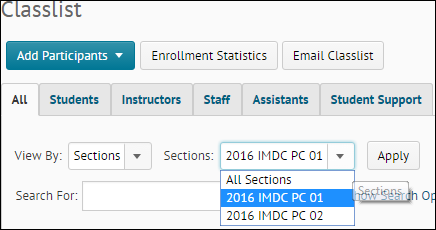
screenshot of filtering the classlist in a BOLT course by section
If you're teaching multiple sections of the same course in a semester, you can combine them into one course offering in BOLT! This saves time since you only have one course in BOLT to deal with!


For Example:
  • Instead of creating the same quiz again and again for each section, create the quiz once.
  • Upload one set of course materials one time.
  • Send email to all students at once or students in certain sections from the Classlist.
  • Assess and evaluate all students in one place.
For more information on combining courses, search for "combine" in the BOLT Help Course! Contact us at bolthelp@bloomu.edu if you have questions!

The request deadline for 2016Fall courses is June 1st!

Language Changes Go Live May 20

Language changes  in BOLT will go live May 20, 2016. Please note this is a display change only- the functionality of the tools will remain the same!


Based on the results of usability testing conducted by Brightspace, the terms changing in BOLT are:

  • News to Announcements
  • Dropbox to Assignments
  • New to Upload / Create
  • Add Existing Activities to Existing Activities
a composite screenshot showing the language changes in BOLT, including Announcements and Assignments on the course homepage, and the Upload/Create and Existing Activities buttons in Content
Again, please note these are language term changes and that functionality will remain the same. 

For more information on the changes and for ways we plan to support your transition, follow the jump cut...

Thursday, April 21, 2016

Did you know you can restore grade items you accidentally deleted?

If you accidentally delete a grade item, you can use the Event Log feature in Manage Grades to restore it.


Go to Coursework > Grades > Manage Grades.


1. Click the More Actions button.


2. Select Event Log.


3. On the Event Log page, look for the name of your deleted grade item.


4. Click the Restore link beside the grade item ID number.


The grade item and its student and grades data will be restored.